





- 30 Day Refund Policy
- Free domain, Free site transfers, Free SSL certificate
- Support available 24/7/365 via Phone, Chat, Tweet, Knowledge Base


- 30 Day Money Back Guarantee
- AI-Powered Performance Optimization, and Turbo Hosting delivering up to 20x faster speeds
- 24/7/365 in-House Support Available via Phone, Live Chat and Ticket System
HostGator vs Hosting.com: Quick Summary
Hosting.com consistently came out cheaper, delivered much faster performance in my GTmetrix tests, and offered more than 20 server locations worldwide.
HostGator still has strong points like reliable daily backups and excellent customer support with phone access, but Hosting.com’s combination of price, speed, security, and flexibility makes it the better value for most users.
1. Prices and Plans Comparison
Hosting.com clearly came out cheaper. Their shared hosting starts at just $1.99/month, while HostGator’s entry-level plan is $3.95/month. Even when you look at WordPress and VPS hosting, Hosting.com consistently undercuts HostGator with better value for short-term commitments, though renewals climb higher.
HostGator, on the other hand, feels more stable with bigger storage options, unmetered bandwidth, and strong bundled features, but it’s noticeably more expensive across most categories. If you’re just starting out and want the lowest possible entry price, Hosting.com gives you more breathing room for your budget.
2. Customer Support Comparison: Who’s Got Your Back?
HostGator provides faster, more accessible support across multiple channels, making it the stronger choice.
HostGator Customer Support
HostGator ticks most of the boxes with 24/7/365 availability across phone, live chat, email, and ticket support. They also offer a knowledge base, tutorials, and a community forum.
To test them, I started with live chat right from their homepage.

Within seconds, a pop-up asked for my details (name, email, and the type of service I was interested in).
After filling this out, I was connected to a live agent in under 30 seconds. This was fast enough to make a real difference when you’re stressed about an issue.
I asked about running a Laravel application with Redis and Supervisor on their plans. The agent confirmed clearly that this would require a VPS hosting plan, since it includes full terminal access.
What impressed me wasn’t just the quick response, but also the fact that the agent gave me a direct, specific recommendation rather than a vague sales pitch
The entire exchange was smooth, professional, and fast. If you’re someone who values immediate assistance, HostGator’s live chat and phone support really stand out.
Hosting.com Customer Support
Hosting.com takes a slightly different approach. They offer ticket support, live chat (in the dashboard), and a knowledge base.
To test them, I tried both tickets and live chat.
Ticket Support: From the top-right of the dashboard, I clicked Help → Open Support Ticket.

I asked how to set up a firewall to allow only ports 22, 80, and 443. The reply came 26 hours later. It was polite and accurate, but generic. For urgent issues, the delay felt too slow.

Live Chat: Next, I used the chat icon in the dashboard, filled in quick fields (email, support PIN, department), and asked if Softaculous auto-configures databases and PHP.
An agent replied in under a minute, all set. The chat took around 3 minutes and was very helpful.

From my testing, Hosting.com’s live chat works very well, but ticket responses are much slower. For non-urgent questions, tickets are fine, but for real-time help, I’d stick to chat.
3. Hosting Features Comparison
HostGator packs in more advanced features across all plans.
HostGator Features
When I used HostGator, I was most impressed by how reliable it was. Daily automated backups meant I never had to worry about losing progress, and unmetered bandwidth easily handled traffic spikes.
Their plans include free SSL, free site migration, and cPanel, which makes management simple and familiar.
Advanced users will appreciate the perks like SSH access, staging sites, caching, and multiple language support.
Even without a website builder, HostGator still feels like a solid, well-rounded option thanks to its mix of security, scalability, and advanced tools.
Hosting.com Features
Testing Hosting.com felt straightforward and beginner-friendly. Their cPanel setup gave me the control I needed without being overwhelming, and I liked that they bundle free SSL and free site migration across all plans.
The AI-powered Sitebuilder was a nice touch, letting me spin up a WordPress site quickly without extra setup. Hosting.com also does well with email hosting, offering up to 40 accounts depending on your plan, which is helpful if you’re running a small team or business.
The only drawback I noticed is that backups are weekly rather than daily, which means you’ll want to stay proactive about manual saves.
4. Website Performance Comparison: Which Hosting Provider Is Faster?
Hosting.com delivers faster and more reliable performance based on my GTmetrix tests.
To really see how each host performs under the hood, I ran a GTmetrix test on two websites: one hosted on HostGator and another hosted on Hosting.com.
This allowed me to compare actual metrics like page load time, time to interactive, and total blocking time.
HostGator Website Performance
For HostGator, I tested their official homepage. The results were a mixed bag.
- GTmetrix Grade: Performance scored 75% and structure 88%, which shows the site is fairly optimised but not perfect.
- Largest Contentful Paint (LCP): An impressive 671ms, which means the main content rendered fairly quickly.
- Total Blocking Time (TBT): 623ms, which is much higher than I would like. That means the page felt less responsive because the browser had to wait for scripts.
- Cumulative Layout Shift (CLS): 0, which is excellent. It means elements didn’t jump around while loading.
- Page Load: The site took 4.0s to load and a massive 12.5s to fully load all resources. This is a concern because visitors often bounce if a site takes more than 3–4 seconds.
- Time to Interactive (TTI): 4.6s, which means it took that long before I could fully interact with the page.
Overall, HostGator did okay in initial rendering but struggled with responsiveness and heavy scripts that delayed full loading.

Hosting.com Website Performance
Next, I tested a site hosted on Hosting.com, and the results were far stronger.
- GTmetrix Grade: Performance hit a near-perfect 94%, with structure at 95%.
- Largest Contentful Paint (LCP): 844ms, which is slightly slower than HostGator’s LCP, but still under the recommended 1 second.
- Total Blocking Time (TBT): Only 56ms, a huge difference compared to HostGator’s 623ms. This shows Hosting.com pages respond almost instantly.
- Cumulative Layout Shift (CLS): 0.12, which is still stable and within acceptable limits.
- Page Load: The site fully loaded in just 1.1s, with onload time also around 1.0s.
- Time to Interactive (TTI): Only 1.0s, which means users could interact with the site almost instantly.
From these numbers, Hosting.com clearly handled scripts and resources far better. Pages were snappy, responsive, and didn’t drag on with unnecessary loading delays.

5. Ease of Use Comparison: Which Platform Is Easier to Use?
Hosting.com wins for its modern dashboard and smoother server management tools.
Registration and Creating a New Account
To see how easy it is to sign up with each host, I started by creating accounts on both HostGator and Hosting.com.
This first step matters because if registration feels complicated or confusing, it can discourage beginners before they’ve even launched their first site.
HostGator
I started with HostGator. From the homepage, I hovered over Hosting on the top menu and clicked Web Hosting.

Scrolling down, I reviewed the plans and settled on the Baby Plan. I clicked Choose Plan and landed on the setup page.
Here, I had the option to register a new domain, use a domain I already owned, or choose a domain later. I decided to skip domain registration and continued.

The next screen displayed the checkout page, where I picked the billing term. For three years, the Baby Plan cost me $4.95/month, which totalled $178.20 upfront, compared to a renewal price of $596.60.
What stood out here were the upsells: Professional Email Trial, SiteLock Security, and CodeGuard Backups. They were clearly marked, but easy to miss if you’re not careful. There was also an option to change the data centre.

On the right side, the Order Summary clearly showed the subtotal, savings, and today’s total. I liked that there was a spot for a promo code, and the 30-day money-back guarantee was easy to see.
After confirming, I clicked Continue to Checkout, where I entered my personal details, created my account password, and added payment information.

I used my debit card, reviewed the final order summary, and then hit Submit Payment. The entire process was smooth, and I found it very beginner-friendly.
HostGator doesn’t overwhelm you with too many technical steps.
Hosting.com
Next, I moved to Hosting.com. Their sign-up process felt even more polished. On the homepage, I hovered over Hosting and navigated to Servers → VPS Hosting.

I wanted to test how easy it would be to set up an unmanaged VPS, so I clicked Compare Plans. After reviewing the options, I chose the VPS M plan and hit Buy Now.
The product configuration page impressed me because it let me customise everything without confusion.
I picked my billing term (1 year at $143.88 with a 52% discount), selected AlmaLinux as my operating system (though Ubuntu and Debian were also available), and chose a server location in Dallas, US.

On the right-hand side, a live summary updated instantly as I made choices, so I always knew what my total was going to be.
Once I was satisfied, I clicked Add to basket. On the next page, I reviewed my cart and went to checkout.

I created my Hosting.com account by entering my details, adding billing info, and choosing PayPal. The final page clearly showed the subtotal, discount, and total before I confirmed the order.
The whole process felt smooth and transparent, which is more customisable than HostGator but still beginner-friendly. I went from homepage to order confirmation in under 10 minutes.
User Interface: Client Area & Dashboard
After signing up, I wanted to see what it was like to log into the dashboards of each host, because this is where you’ll manage your sites, billing, and settings.
A confusing dashboard can make even simple tasks frustrating, so this was an important part of my review.
HostGator
When I logged into HostGator, I landed on the Customer Portal. Right at the centre was a table of all my hosting packages, showing the plan name, associated domain, renewal date, and status.
Each plan had clear action buttons (Manage and cPanel Email) so I could quickly access key areas.

The left-hand menu was minimal and well-structured, with sections like Home, Websites, Hosting, Domains, and Marketing. This organisation makes it very easy to navigate, even if you’re new to hosting.
I especially appreciated the Renewal Centre and Marketplace sections, which are handy if you want to renew or buy extra tools. Overall, HostGator’s dashboard is functional and easy to grasp, though more advanced users might find it too basic.
Hosting.com
On Hosting.com, the experience was even smoother. After logging in, I was greeted with a clean, dynamic Customer Portal.
What stood out here was that the left-hand menu updated the right-hand panel instantly, without reloading entire pages. This small detail makes the portal feel modern and responsive.

At the top, I saw a personalised “Welcome” message and a Place New Order button. The main dashboard was divided into cards for Domains, Hosting, and Billing.
Clicking any of them expanded the details inline, showing my active plans, renewal dates, and current statuses.
The real advantage of Hosting.com’s dashboard is speed and clarity. Navigation felt smooth, and I didn’t waste time waiting for full-page reloads.
For someone managing multiple sites or services, this design keeps everything organised and efficient.
Hosting Setup: Creating a New WordPress Website
The next thing I wanted to check was how easy it is to launch a new WordPress site. Since WordPress powers most websites today, the setup process says a lot about the host’s usability.
HostGator
After buying HostGator, I landed on the Customer Portal Dashboard. From there, I clicked the Websites tab to manage existing sites or create new ones.

Next, I clicked Add Site. This action directed me to the Hosting tab, where I had to select the package I wanted to use. I clicked Manage on my active plan, which opened the package dashboard.

Inside, I clicked Add Site again.

This time, HostGator gave me the option to Install WordPress, so I selected it and hit Continue.

I was then asked to enter my site title. I could also choose to skip this step if I didn’t want to set it up right away. After that, I had three domain options:
- Enter an existing domain name
- Use a temporary domain
- Skip for now
I entered my domain, clicked continue, and the WordPress installation process started. In less than a minute, it was finished and ready to use.
Once WordPress was installed, I had two ways to access the dashboard:
- Option 1: Customer Portal (Single Sign-On): From the dashboard, I went to Websites → Edit Site and logged in with one click. This works only with HostGator’s One-Click installer and makes login very convenient.
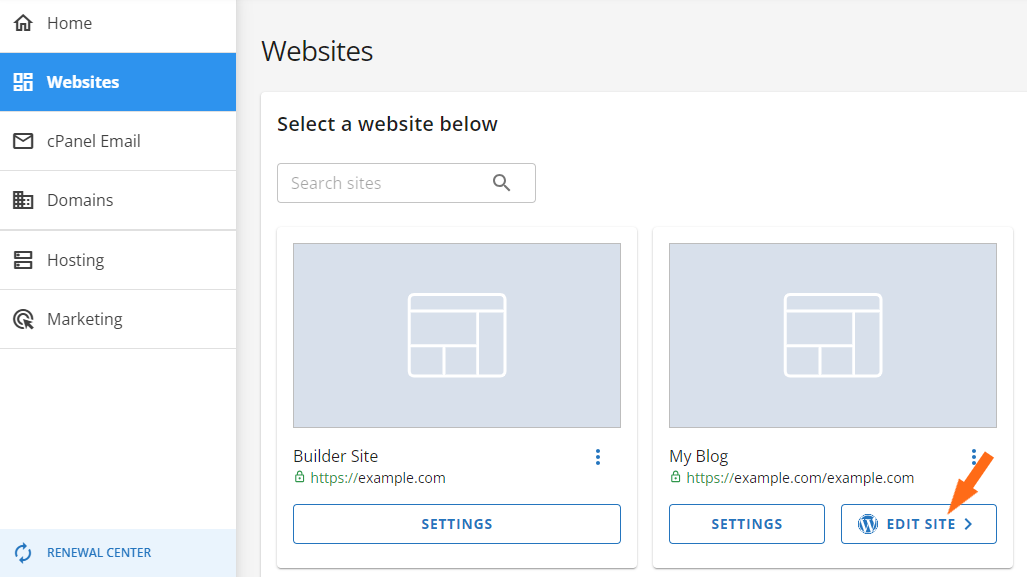
- Option 2: Direct Login via wp-admin: After DNS propagation, I could log in at https://yourdomainname.com/wp-admin using the credentials set during installation.

Both worked smoothly, though I preferred single sign-on. Overall, HostGator’s WordPress setup was quick and straightforward.
Hosting.com
On Hosting.com, the process was just as easy, though it felt more advanced. From the Customer Portal, I clicked Manage next to my hosting product.
On the next page, I hit Login to Control Panel, which launched full cPanel instantly, no need to re-enter login details.

Inside cPanel, I used the Softaculous App Installer. I clicked “Install WordPress,” selected my domain, filled in the site title and admin details, and hit Install.

In under five minutes, I had a live WordPress site ready to go. What I liked about Hosting.com is that you get the full power of cPanel without restrictions, so advanced users can fine-tune databases or install other apps just as easily.
Server and Hosting Management
Finally, I checked the tools each host offers for ongoing server and site management. Setup is one thing, but long-term ease of use really matters.
HostGator
On HostGator, I accessed the Hosting Packages section in the Customer Portal. From here, I could manage my plans, view server information (IP address, cPanel login, DNS settings), and connect via FTP or SSH.
For VPS and Dedicated plans, I could also check resource usage like RAM, disk space, and bandwidth.

The interface is clean, but the controls felt more limited compared to Hosting.com. Most deeper configurations still required me to log into cPanel.
Hosting.com
To test how Hosting.com handles server management, I went into my active VPS plan, specifically, the Unmanaged Linux VPS (Linux S – Self Managed).
I wanted to see if their tools were practical enough for day-to-day use and how they compared with other providers I’ve tested.

The page that opened was titled Manage Your Product, and right away, it left a strong first impression.
Everything was cleanly laid out, and even though this was an unmanaged VPS (which normally means you’re on your own without much guidance), the interface didn’t feel overwhelming at all.
At the top, there’s a panel of one-click server actions:
- Reinstall Server – I could reload the OS or switch distributions (like AlmaLinux → Ubuntu) in seconds.
- Console Login – A browser-based terminal gave me direct VPS access without SSH, handy if I ever got locked out.
- Power Controls – Quick reboot, shutdown, or power-on with no digging.
- Recovery ISO Mode – Lets me mount a recovery image if the OS crashes, a reassuring safety net.

Scrolling down, I saw three tabs that made server info easy to follow:
- Overview – Quick snapshot of OS (AlmaLinux), hostname, IP, and root credentials, all easy to update.
- Billing – Shows subscription term, renewal dates, and plan details, which kept everything in one place.
- Settings – Lets me rename the server, reassign IPs, or add notes, offering simple but flexible control.
Two small features really stood out:
- Product Notes – A simple text field to jot reminders like Client X’s WordPress site or Testing for project Y. This is super handy when managing multiple servers.
- Product Secrets – An encrypted (AES-256) vault to store root passwords, SSH keys, or API tokens. Most hosts make you use a separate manager, so having it built in felt secure and convenient.
The interface was fast and responsive. In other words, actions happened instantly, navigation was clear, and I never had to hunt through menus.
For me, VPS management is about reacting quickly, scaling easily, and tweaking configurations without stress, and Hosting.com made that smooth and simple.
6. Privacy and Security Comparison: Which Platform Is More Secure?
Hosting.com gives stronger built-in protections and modern tools for security and privacy.
HostGator Privacy and Security
HostGator provides baseline security: free SSL, DDoS protection, custom firewall rules, and mod_security to block common exploits. Data centres have restricted access, and weak passwords are flagged for updates.
Weekly automated backups are included, but daily backups and advanced malware protection require add-ons like CodeGuard or SiteLock.
Users are responsible for keeping CMS, themes, and plugins updated, running malware scans, and using secure passwords.
Tools like SFTP, domain privacy, and secure cPanel login help, but most security relies on user action.
Hosting.com Privacy and Security
Hosting.com, in my experience, offered more powerful tools right out of the box. Like HostGator, Hosting.com includes free SSL, DDoS protection, and adds Cloudflare integration for CDN filtering and performance.
Its firewall setup uses ConfigServer Firewall plus ModSecurity for stronger WAF protection. Patchman automatically scans for vulnerabilities, updates outdated software, and quarantines infected files.
Two-factor authentication (2FA) adds extra account security. Daily backups are available on higher-tier plans.
Privacy measures include encrypted password storage, GDPR compliance, confidentiality agreements, and Cloudflare’s EU-US Data Privacy Framework, giving extra trust for global customers.
7. Server Locations Comparison
Hosting.com wins because it gives you over 20 global data centres to choose from, while HostGator limits you to U.S.-based locations.
HostGator Server Locations
When I reviewed HostGator, I found that most of their servers are located in Provo, Utah and Atlanta, Georgia, with a few in other U.S. regions. What stood out immediately was that I couldn’t choose the data centre myself. HostGator assigns it automatically.
To extend reach, HostGator integrates with Cloudflare’s CDN, which routes traffic through 23+ global edge locations across North America, Europe, Asia, and Australia.
That does help deliver faster content to worldwide users, but it’s still not the same as actually hosting your site in an international data centre.
In short, if your audience is global, you’ll be relying on Cloudflare caching instead of a true worldwide hosting infrastructure.
Hosting.com Server Locations
Hosting.com gave me a lot more flexibility. At checkout, I was able to choose from 20+ data centres worldwide, which made the process feel more tailored. The options included:
- Dallas, US
- Toronto, CA
- Mexico City, MX
- London, UK
- Frankfurt, DE
- Sydney, AU
- Singapore, SG
- Mumbai, IN
For me, picking a server near my audience was a big plus for speed and user experience.
Hosting.com confirmed you can switch locations later, but it requires creating a new server and manually migrating data, not one-click, but still flexible.
HostGator vs Hosting.com: The Bottom Line
After testing both providers, I found Hosting.com to be the overall winner. It offers cheaper starting prices, faster performance, and more global server options, which makes it the better value for most users.
HostGator still shines with strong daily backups and responsive support, but Hosting.com’s speed, pricing, and flexibility give it the clear edge.
| Category | Winner | Why |
| Pricing and Plans | Hosting.com | Starting at $1.99/month, Hosting.com is cheaper across most plans, offering better value for beginners and small businesses. |
| Support | HostGator | Offers 24/7 support across multiple channels, including phone support, which Hosting.com lacks. |
| Hosting Features | HostGator | Daily backups, unmetered bandwidth, and more advanced tools make it stronger for long-term scalability. |
| Website Performance | Hosting.com | GTmetrix tests showed far faster load times (1.1s vs 12.5s fully loaded). |
| Ease of Use | Hosting.com | A modern, fast dashboard and smoother VPS management tools make it more beginner-friendly and flexible. |
| Privacy and Security | Hosting.com | Includes Cloudflare, Patchman vulnerability scanning, 2FA, and stronger built-in safeguards. |
| Server Locations | Hosting.com | Over 20 global server locations compared to HostGator’s limited U.S.-based data centres. |

